Option 1
From the games list
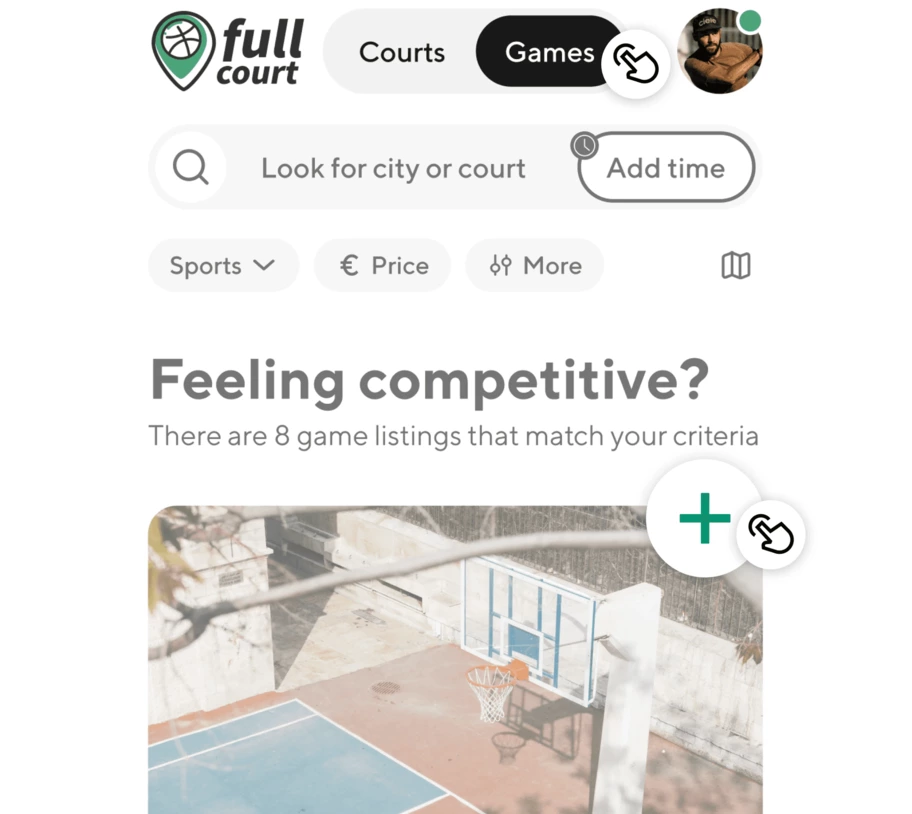
Switch from the Courts view to the Games view and tap “Create game”. Then search for the venue by name and choose the court.
Open games
Open games are games other players have set up and opened to anyone. Find one near you, pay your share of the court and play.
Takes about 2 minutes
01
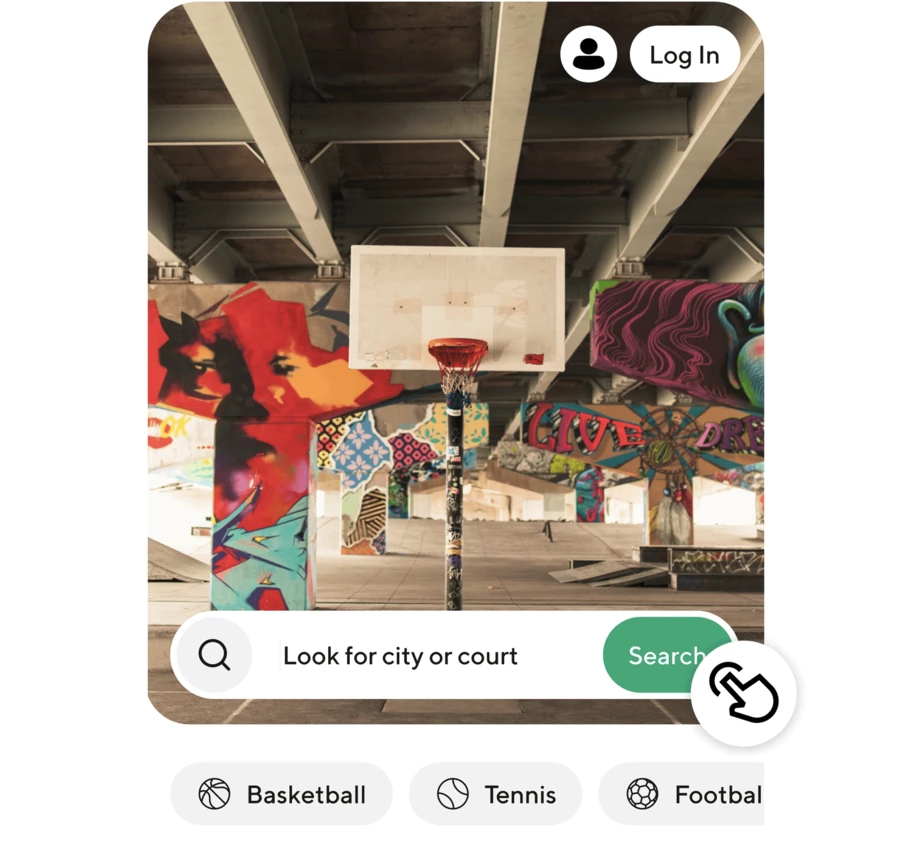
Search for a city or a court, or tap a sport to see what’s on near you.
02
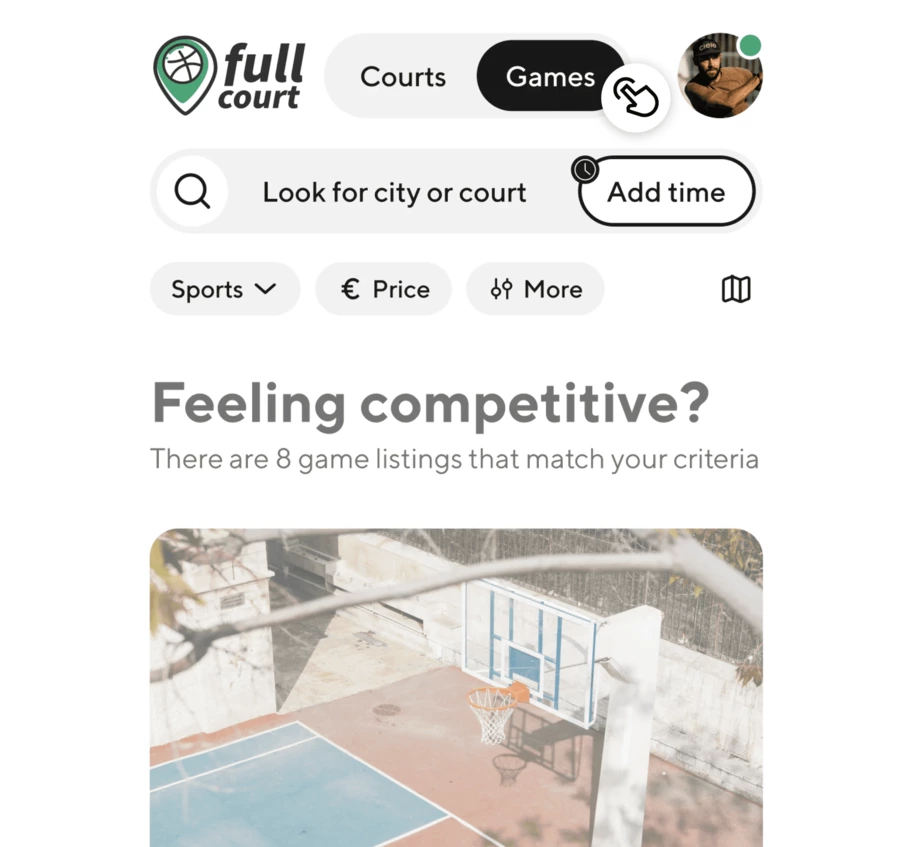
Change the view from Courts to Games to see the open games.
03
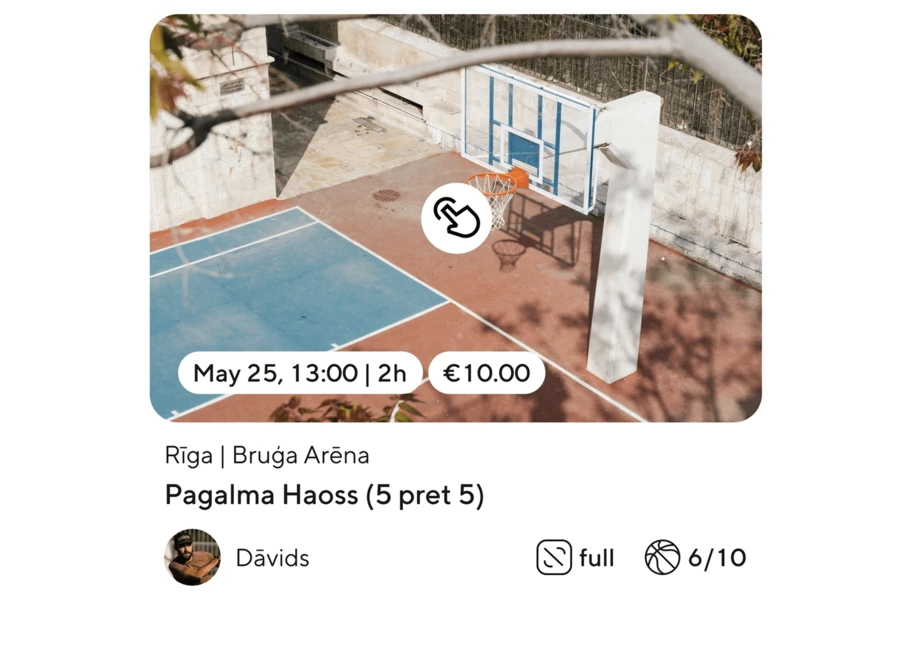
Find a game that suits you and tap its picture to open it.
04
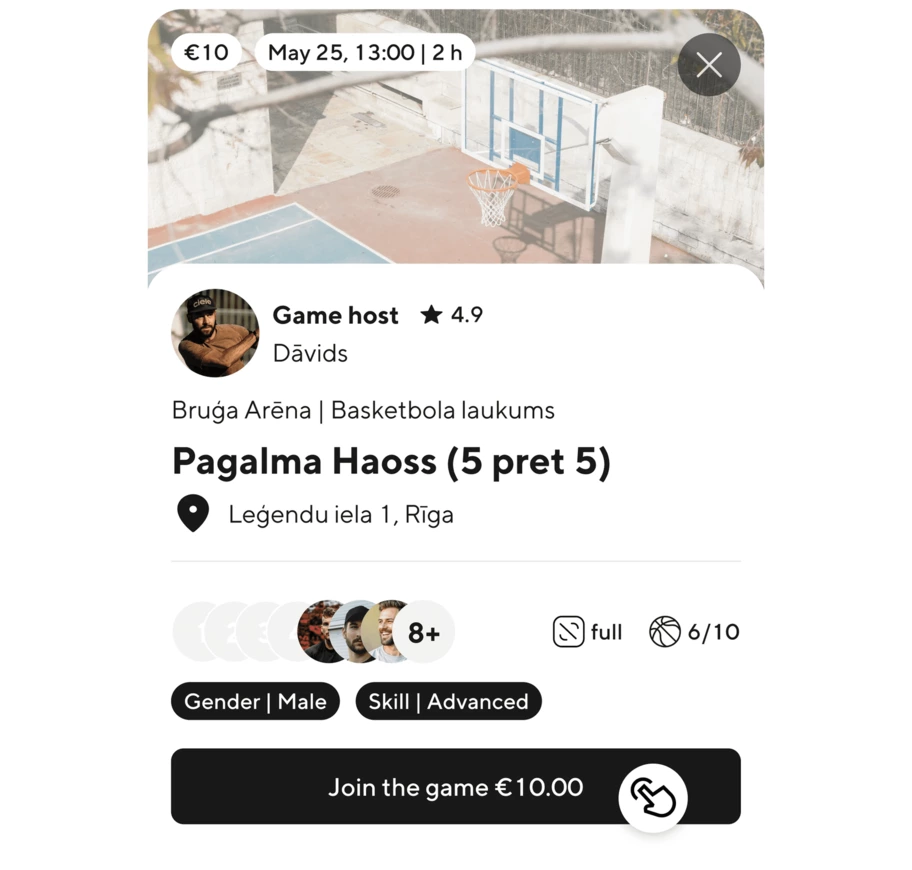
Look over the game details, then continue to payment.
05
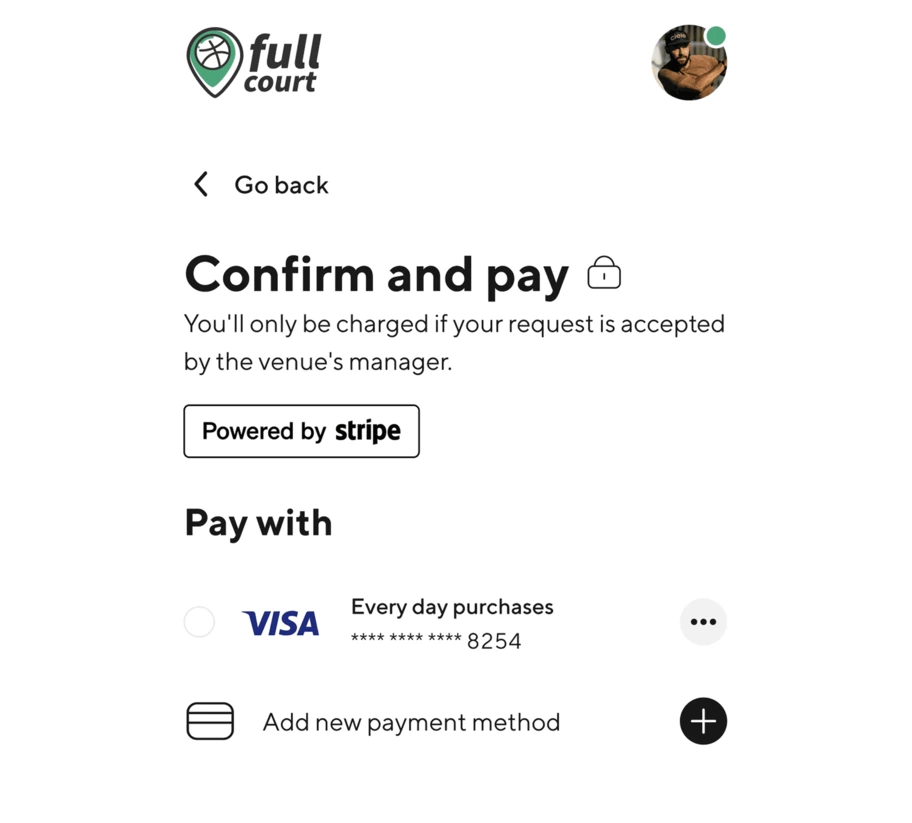
Pay your part of the court fee and wait for the confirmation. Then go and play.
Good to know:
You’re only charged if the venue’s manager accepts the request.
Open games
Set up a game at a court near you and let other players join. You choose the details and who pays for the court. You can even let the other players cover it.
Takes about 3 minutes
01
Search for a city or a court, or tap a sport.
02
There are two ways to start, pick the one that suits you.
Option 1
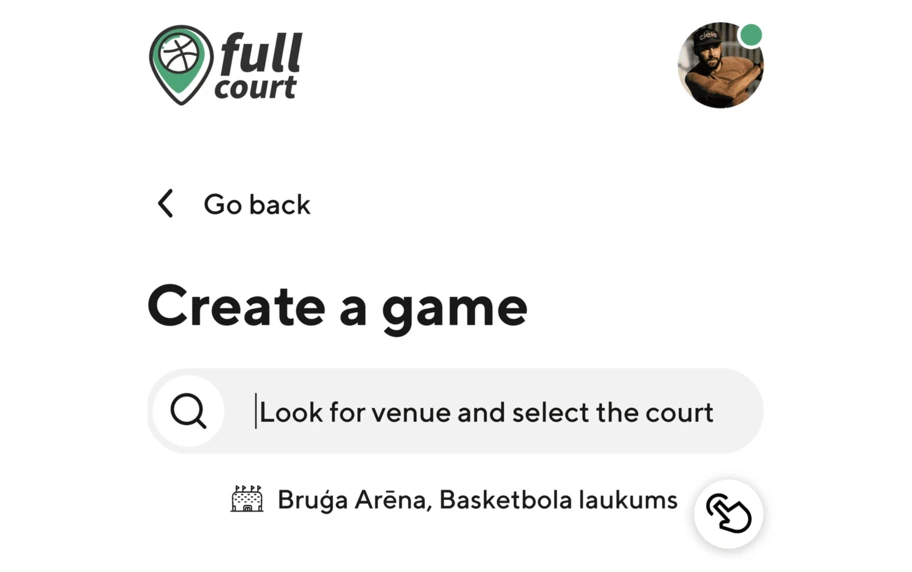
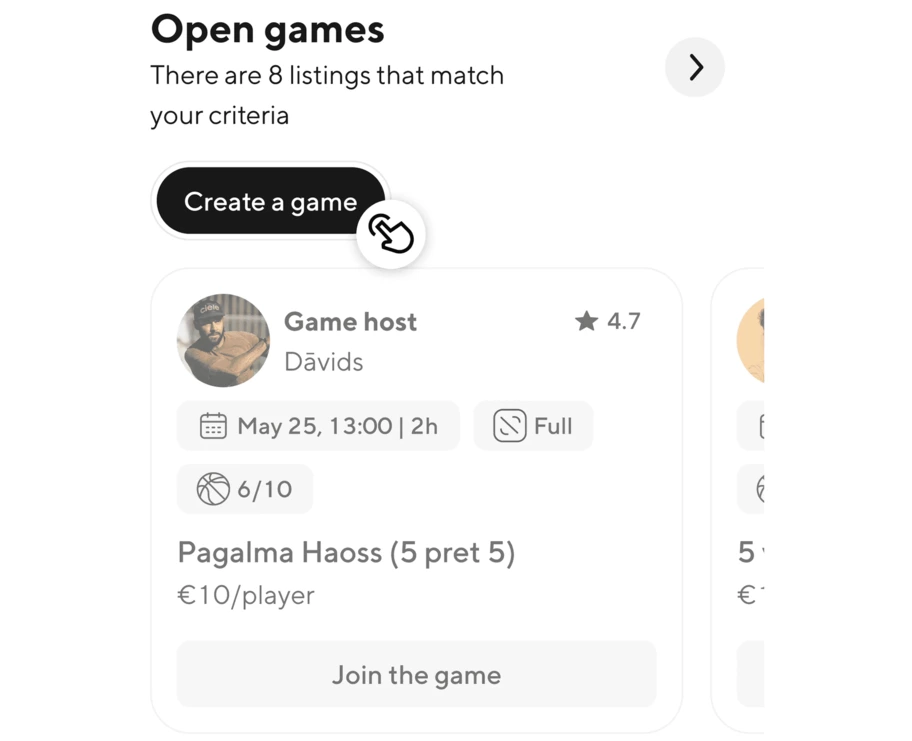
Switch from the Courts view to the Games view and tap “Create game”. Then search for the venue by name and choose the court.
Option 2
Open the court’s profile, go to the Open games section and tap “Create a game”.
03
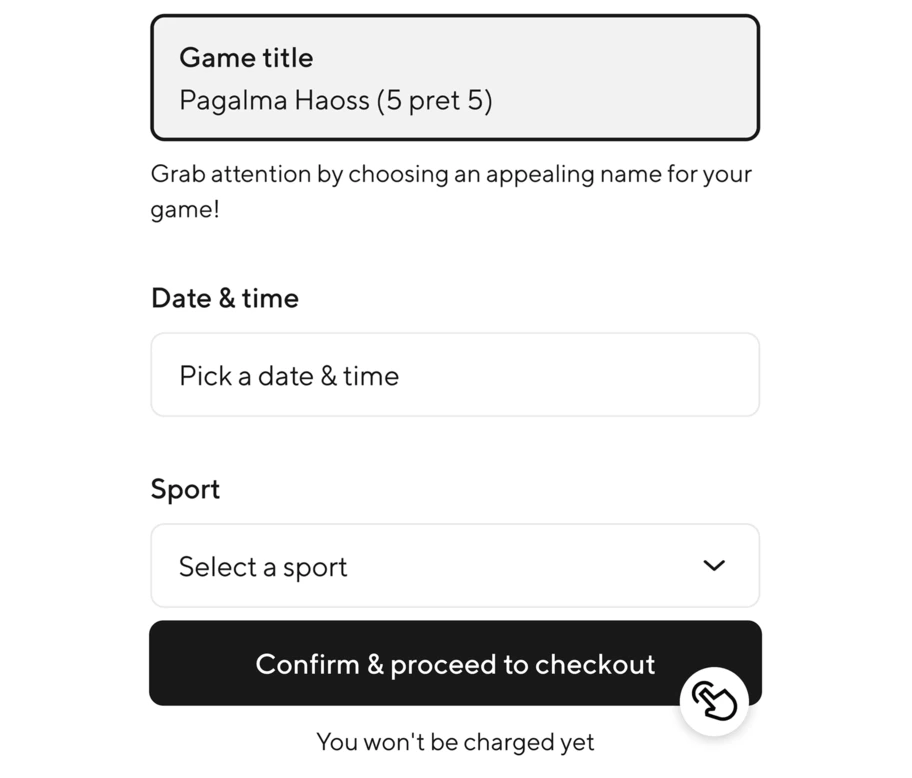
Enter the game details and add clear instructions for the other players.
Good to know:
You won’t be charged yet.
04
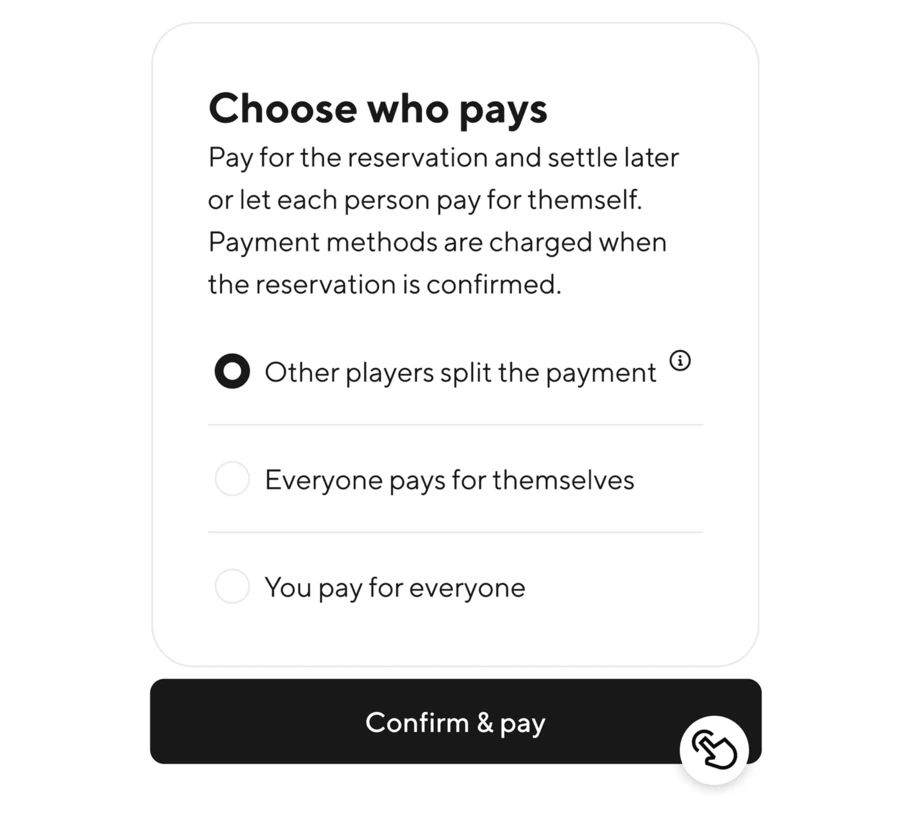
Other players split the payment, everyone pays for themselves, or you pay for everyone. Pick one and confirm.
Good to know:
Payment methods are charged when the reservation is confirmed.
05
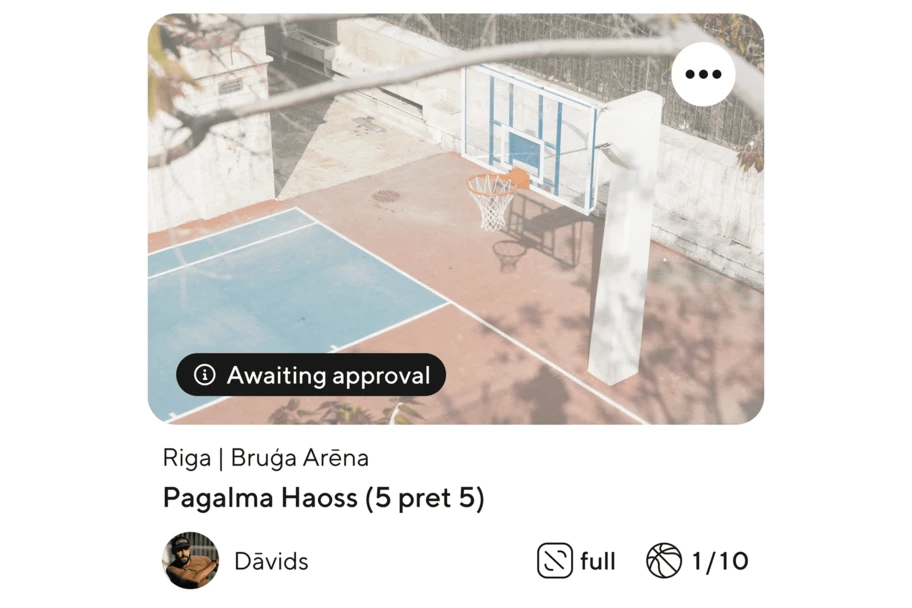
Your game shows “Awaiting approval” until the venue confirms it. Once it’s approved, your game is on.
Good to know:
Every open game is approved by the venue before it goes ahead.